
Windows Admin Center: Complete Guide to Download, Installation, and Server Management
Windows Admin Center (WAC) is Microsoft's browser-based management platform for Windows Server, Hyper-V, failover clusters, and Azure Stack HCI. This guide walks through what it is, how it works, how to install it, and how to use its core management features.
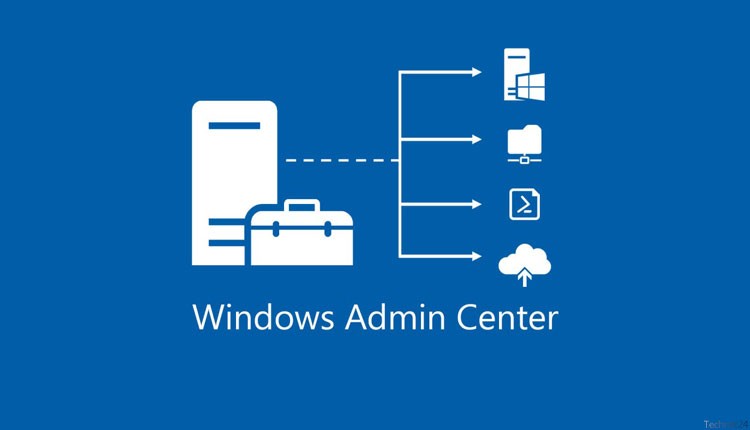
Windows Admin Center (WAC) is Microsoft's browser-based management platform for Windows Server, Hyper-V, failover clusters, and Azure Stack HCI. This guide walks through what it is, how it works, how to install it, and how to use its core management features.
What Is Windows Admin Center?
For years, managing Windows infrastructure meant juggling separate consoles — Server Manager, Hyper-V Manager, Failover Cluster Manager, Event Viewer — plus countless Remote Desktop sessions. Windows Admin Center consolidates all of that into a single, secure, web-based dashboard.
Administrators can manage servers, virtual machines, clusters, and storage from any browser over HTTPS, without needing to log directly into each machine for routine tasks. It's free, actively maintained by Microsoft, and increasingly the recommended tool for day-to-day Windows Server administration.
How It Works
Windows Admin Center is agentless — it doesn't require installing any software on the servers it manages. Instead, it communicates with target machines using standard Windows technologies:
- PowerShell Remoting
- Windows Management Instrumentation (WMI)
- WinRM
- Remote Desktop Services
- SMB
- Failover Cluster API
All of this traffic routes through a central Gateway, which handles authentication, session management, and the web interface itself.
Because there's no agent to deploy or maintain, rollout is faster and ongoing overhead is lower than with many traditional management tools.
Architecture Overview
| Component | Role |
|---|---|
| Gateway | The core service. Receives admin requests and relays them to target servers via Windows management protocols; also handles authentication and the web UI. |
| Managed Nodes | The servers, clusters, VMs, and hosts being managed — Windows Server, Windows client, Hyper-V hosts, Azure Stack HCI. |
| Extensions | Add-on modules that extend functionality (Azure integration, storage tools, hardware vendor plugins, etc.). |
| Web Interface | The browser-based front end used for all management operations. |
Key Benefits
- Centralized management — one dashboard instead of half a dozen separate tools
- Browser-based — no console install needed on the admin's machine
- Strong security — HTTPS/TLS encryption, Active Directory integration, role-based access control (RBAC)
- Agentless — nothing to install or maintain on managed servers
- Extensible — third-party and Microsoft extensions add new capabilities
System Requirements
Supported operating systems:
- Windows Server 2016, 2019, 2022, 2025
- Windows 10 / Windows 11 (supported builds)
Recommended hardware:
| Component | Minimum | Recommended |
|---|---|---|
| CPU | 2 cores | 4+ cores |
| RAM | 4 GB | 8 GB+ |
| Disk space | 1 GB | 5 GB |
| Network | 1 Gbps | 10 Gbps (datacenter) |
Software needed: a modern browser (Edge or Chrome), PowerShell 5.1+, WinRM enabled, and the .NET Framework version required by the host OS.
Ports to open:
| Service | Port |
|---|---|
| HTTPS | 443 |
| WinRM (HTTP) | 5985 |
| WinRM (HTTPS) | 5986 |
| Remote Desktop | 3389 |
| SMB | 445 |
| WMI | Dynamic (DCOM) |
In enterprise environments, restrict access to these ports with firewall rules and network segmentation.
Deployment Options
1. Desktop install — runs on an admin's own PC. Quick to set up, good for testing or small shops, but doesn't scale to larger teams.
2. Gateway install (recommended for organizations) — a dedicated, centrally accessible service that multiple admins can connect to through a browser. This is the standard approach for enterprise use.
3. Server install — deployed on a dedicated server for always-on availability, centralized management, and easier backup.
Installation Walkthrough
- Download the latest Windows Admin Center installer from Microsoft's official site.
- Run the installer, accept the license terms, and click Install.
- Choose the install mode — Desktop or Gateway (choose Gateway for organizational use).
- Select a port — 443 by default; pick another if that port is already in use.
- Choose an SSL certificate:
- Self-signed — fine for testing only
- Existing certificate — use your organization's trusted certificate
- Import certificate — bring in a certificate from a file In production, always use a properly trusted certificate rather than a self-signed one.
- Let the installer finish — it sets up the Gateway service, web service, certificate binding, and firewall rules.
- Log in by browsing to
https://<server-name-or-IP>and authenticating with an account that has administrative rights.
Adding your first server: click Add → Server, enter the hostname or IP, provide credentials, and click Connect. Once connected, you'll immediately see CPU/memory/disk status, running services, recent events, update status, and more.
Core Management Features
The main dashboard exposes tools for:
- Overview — server name, OS version, uptime, domain, CPU/RAM/disk snapshot
- Performance monitoring — real-time CPU, memory, disk I/O, and network graphs
- Storage — physical/virtual disks, volumes, Storage Spaces, resize/format/rename operations
- Files — a built-in file explorer (create, delete, rename, upload, download) — especially useful for Server Core installs with no local GUI
- Networking — IP configuration, DNS, adapter status, link speed
- Local users & groups — create/disable accounts, manage group membership
- Services — start, stop, restart, and change startup type for any Windows service
- Processes — view resource usage and terminate misbehaving processes
- Event Viewer — browse and filter Application, Security, System, and Setup logs — often the first place server problems surface
- Registry editor — view and modify keys remotely (always back up before making changes)
- Built-in PowerShell console — run commands and scripts directly against the server without a separate RDP session
- Windows Update — check for, download, and schedule updates
- Firewall — manage inbound/outbound rules
- Certificates — view, import, and manage the certificate store
- Roles & Features — install or remove server roles (AD DS, DNS, DHCP, IIS, Hyper-V, File Server, and more) without opening Server Manager
Managing Hyper-V
Windows Admin Center covers most day-to-day Hyper-V tasks:
- Create, start, stop, and restart virtual machines
- Create and apply checkpoints (snapshots)
- Attach ISO files
- Configure dynamic memory and virtual processor count
- Manage virtual switches
- Monitor per-VM resource usage
Creating a new VM is a guided flow: pick the host, name the VM, choose generation, allocate RAM/CPU, create or attach a virtual disk, connect it to a virtual switch, and attach an installation ISO.
A practical note on checkpoints: they're useful before major changes or updates, since they let you roll back quickly. But leaving too many checkpoints in place over time can eat storage and hurt performance — clean them up once you've confirmed a change was successful.
Failover Clustering and Storage Spaces Direct
For organizations running high-availability workloads, Windows Admin Center provides:
- Cluster and node health status
- Cluster role management
- Shared volume management
- Quorum status checks
- Failover operations
It also supports Storage Spaces Direct (S2D) environments — showing disk and pool health, used/free capacity, and storage-related alerts, which matters a lot for Azure Stack HCI and storage cluster deployments.
Azure Stack HCI and Azure Arc Integration
Windows Admin Center integrates natively with:
- Azure Stack HCI — node management, cluster health, VM performance, and storage/network monitoring for hyper-converged infrastructure
- Azure Arc — extends centralized management to on-premises and cloud servers together, letting you apply consistent security policies, monitor through Azure Monitor, and manage updates via Azure Policy — particularly valuable for hybrid cloud setups
Extensions
Extensions add functionality beyond the built-in feature set. Examples include Azure Monitor, Azure Backup, Azure Site Recovery, Storage Migration Service, and hardware-vendor integrations from Dell, Lenovo, and HPE. Admins can install only the extensions they actually need, keeping the interface focused.
Security Best Practices
- Use a properly trusted SSL certificate — not self-signed — in production
- Restrict Gateway access via firewall or VPN
- Enable multi-factor authentication where supported
- Use dedicated administrative accounts rather than a shared Administrator login
- Apply the principle of least privilege for users and groups
- Review security logs regularly
- Keep both Windows Admin Center and the host OS patched
Troubleshooting Common Issues
Can't connect to a server — check that WinRM is running, required ports are open, DNS resolves correctly, and the credentials used have sufficient permissions.
Certificate warnings in the browser — expected with self-signed certificates; switch to a certificate issued by a trusted CA and make sure the certificate name matches the server name.
Slow dashboard performance — check the Gateway host's own CPU/RAM, remove unused extensions, update the browser, and verify network quality.
Windows Admin Center vs. Other Tools
| Feature | Windows Admin Center | Server Manager | RSAT | System Center |
|---|---|---|---|---|
| Web-based UI | Yes | No | No | No |
| Browser access | Yes | No | No | No |
| Hyper-V management | Full | Limited | Limited | Full |
| Failover cluster management | Full | Limited | Limited | Full |
| Azure integration | Yes | No | No | Yes |
| Extensions | Yes | No | No | Limited |
| Built-in PowerShell | Yes | No | No | No |
| Free | Yes | Yes | Yes | No |
| Dedicated infrastructure required | No | No | No | Yes |
Windows Admin Center isn't a full replacement for System Center's advanced monitoring capabilities, but for most organizations' day-to-day server management, it covers the essentials at no additional cost and with far less setup complexity.
Frequently Asked Questions
Is Windows Admin Center free? Yes — Microsoft provides it at no cost, with no separate licensing required to manage Windows servers.
Do I need to install an agent on managed servers? No. It's agentless, relying on WinRM, WMI, and PowerShell Remoting.
Can it manage Linux servers? Its primary focus is Windows Server, though limited SSH-based management for Linux is available. It's nowhere near as comprehensive as its Windows management capabilities.
Can I manage many servers from one dashboard? Yes — dozens or even hundreds of servers can be added and managed centrally.
Does it replace Remote Desktop entirely? For most routine tasks, yes. Some edge cases still call for a full RDP session.
Is it suitable for enterprise environments? Yes — it scales from small businesses to large organizations and supports complex scenarios like Hyper-V clusters and Azure Stack HCI.
Summary
Windows Admin Center brings together server monitoring, Hyper-V management, cluster administration, storage management, and Azure integration into a single, secure, web-based console — without requiring an agent on every managed machine. For many organizations, adopting it reduces reliance on older tools like Server Manager and Hyper-V Manager while making day-to-day infrastructure management faster and more centralized. If you're looking for a modern, free, and extensible way to manage Windows-based infrastructure, it's one of the strongest options available today.
DOWNLOAD LINK:
What's Your Reaction?
 Like
0
Like
0
 Dislike
0
Dislike
0
 Love
0
Love
0
 Funny
0
Funny
0
 Wow
0
Wow
0
 Sad
0
Sad
0
 Angry
0
Angry
0